Easy-to-find DxDesigner Schematic Navigation Features to Help You Make Decisions Now
With the new DxDesigner 7.9.4 release, a primary focus of the release was improving ‘ease of use.’ Project Navigator is a powerful tool and is extremely configurable per user, and also has the ability to show component names, reference designators, page numbers, net names, blocks, and other helpful functions.
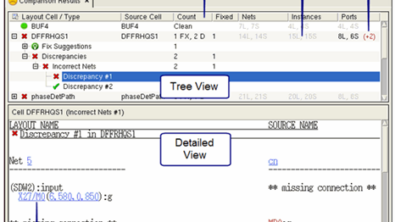
But as the old saying goes, pictures are worth a thousand words and that is the driver behind Thumbnails. Introduced in 2011 for a quick graphical view of flat schematic pages, each new release has seen significant updates to the capabilities of thumbnails. Thumbnails are now used for schematic navigation for flat and hierarchical pages, zoom and pan, and are included in the tooltip previews of top level symbols for underlying blocks.
Beyond graphics, modern documents are also comprised of links. You can simply click on a hotspot and the document focus changes to a new point. DxDesigner has long had the ability to launch hyperlinks from symbols with the right mouse button menu, but missing was the ability to use those shortcuts in the schematic itself. Not anymore. These powerful links annotate symbols with matching names can be placed anywhere in your schematic design and with a simple Alt-mouse click you are transported to the next matching link in the design.
Want to learn more about thumbnails and links in the latest release? Check out my latest YouTube video at http://youtu.be/7pMWXixHJ0M.
Gary Lameris
Mentor Graphics, Technical Marketing Engineer
Follow me on Twitter
More Blog Posts
Add Your Comment
About PCB Schematic Design with DxDesigner
All about PCB design creation using the most widely adopted Mentor Graphics product, DxDesigner.
Latest Posts
- Schematic Capture in the PADS ES Suite video release
- Schematics with Pizzazz using DxDesigner
- Learning Through Video
- Creating a Cover Sheet with Links
- The Backwards World of Component Selection